Last Updated on 3 weeks ago by Elric
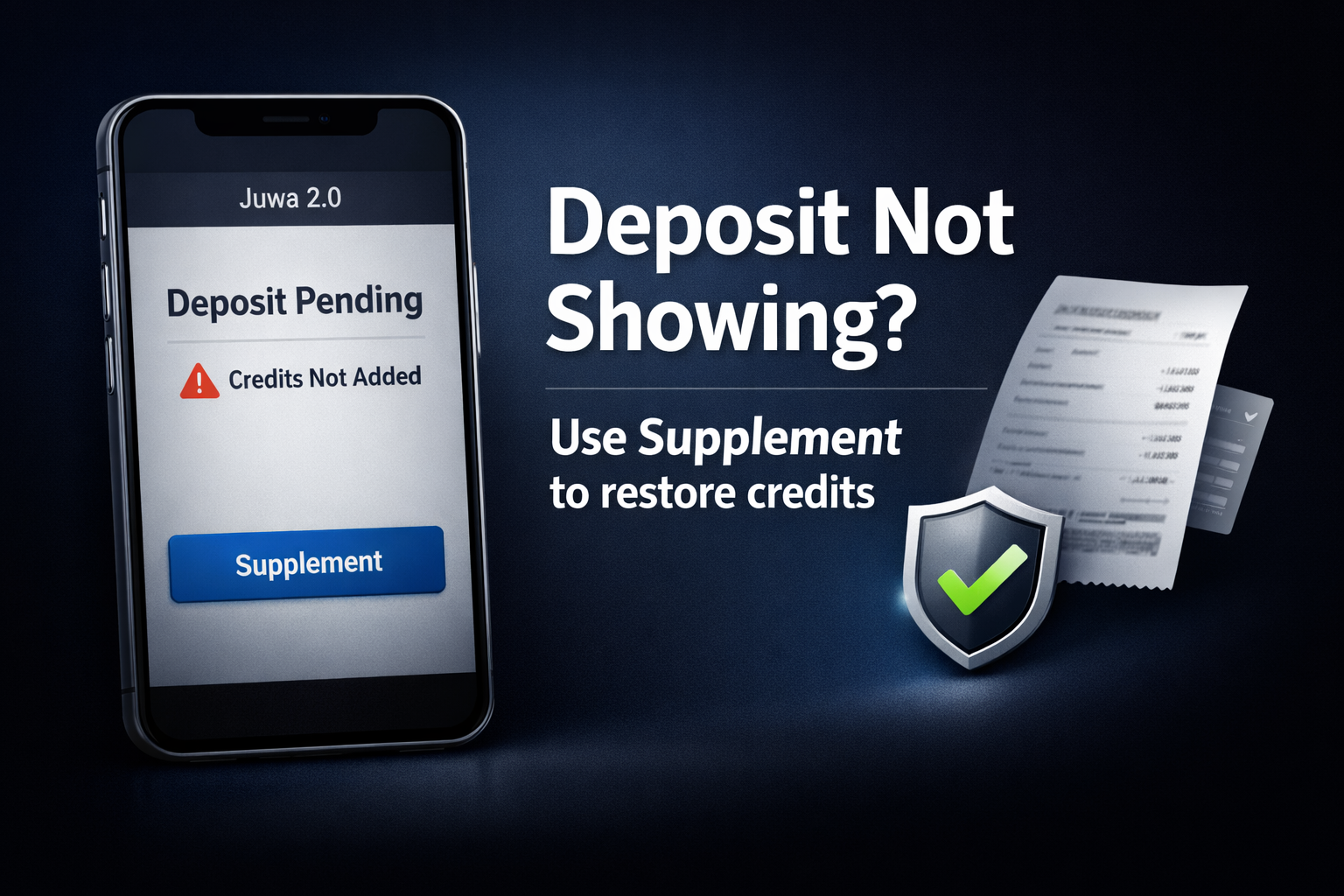
Juwa 2.0 deposit not showing in your balance can feel stressful. However, most cases have a clear fix inside the app. This guide keeps the same steps and proof requirements, but makes them easier to follow.

If you still need to install Juwa 2.0 first, download/register here, then come back to follow the deposit-fix steps: Juwa 2.0 download & registration.
Quick checklist (do this first)
- First, confirm the deduction in your bank or payment app.
- Next, open Juwa 2.0 and check ATM > Buy > History.
- Then, take screenshots of the order, amount, and timestamps.
- After that, copy the Transaction ID exactly (no typos). If you’re unsure what it is, read: What is a transaction ID?
- Finally, use Supplement or contact in-app support if it fails.
Why a Juwa 2.0 deposit may not show
What usually happens
In most cases, a deposit should credit right away. However, a small glitch can break the final credit step. As a result, your bank shows a deduction while your game balance stays the same.
Don’t panic: there is a built-in fix
Fortunately, Juwa 2.0 includes a Supplement system for failed deposits. Think of it as an in-app claim that helps match your payment with the missing credits. Therefore, you should try Supplement before anything else.
The Supplement method (ATM > Buy > History)
Step 1: Open your transaction history
First, open the Juwa 2.0 app and go to the in-app ATM. Next, tap Buy to view purchase options. Then select History to see your recent deposit attempts.

Step 2: Find the deposit that didn’t credit
Now, scroll through the list and locate the problem deposit. For example, you may see it marked as pending, incomplete, or not fully processed. Meanwhile, confirm the same amount and time in your bank or payment app.
Step 3: Tap “Supplement” for that order
Next to the specific order, you should see a Supplement option. Tap it to start the recovery request. If the button is available, this is usually the fastest path.
Step 4: Enter the required details carefully
This step matters most. Therefore, enter each item exactly as it appears in your records. Even one wrong character, especially in a Transaction ID, can slow verification.
- Receiver Address: The wallet or account address where your payment was sent.
- Amount: The exact deposited amount (match your bank statement).
- Tag Name: Your unique identifier or username in the system.
- Transaction ID: The confirmation number from the original deposit (check your bank app, payment processor, email confirmation, or the game’s transaction details if shown).
To avoid delays, double-check spelling, digits, and punctuation. In addition, keep a screenshot of the completed Supplement form before you submit.
Step 5: Submit and allow time for verification
After you enter the details, submit the request. Then the system reviews your information and applies the credits if it matches. In most cases, this takes about 1–2 days, depending on verification volume.
If the Supplement feature won’t work
Common Supplement problems
Sometimes the Supplement option is grayed out or fails to load. On the other hand, you may see an error message after tapping it. If that happens, you still have a backup method.
Before you contact support, collect proof
First, gather everything in one place so your case is easy to verify. As a result, support can help faster and with fewer follow-ups.
- Your Juwa 2.0 username (spelled exactly as shown in the app)
- The email address linked to your account
- The order number for the failed deposit
- The transaction ID from your bank or payment processor
- A clear screenshot showing the deduction (include date and time if visible)
In addition, write down the date, time, and amount of the deposit. Those timestamps matter because they help match your payment to the correct order.
How to reach support inside Juwa 2.0
Open the support option from the app
Go to the Customer Support button inside the Juwa 2.0 app and open it. Then follow the app’s flow to reach the official support profile listed there.
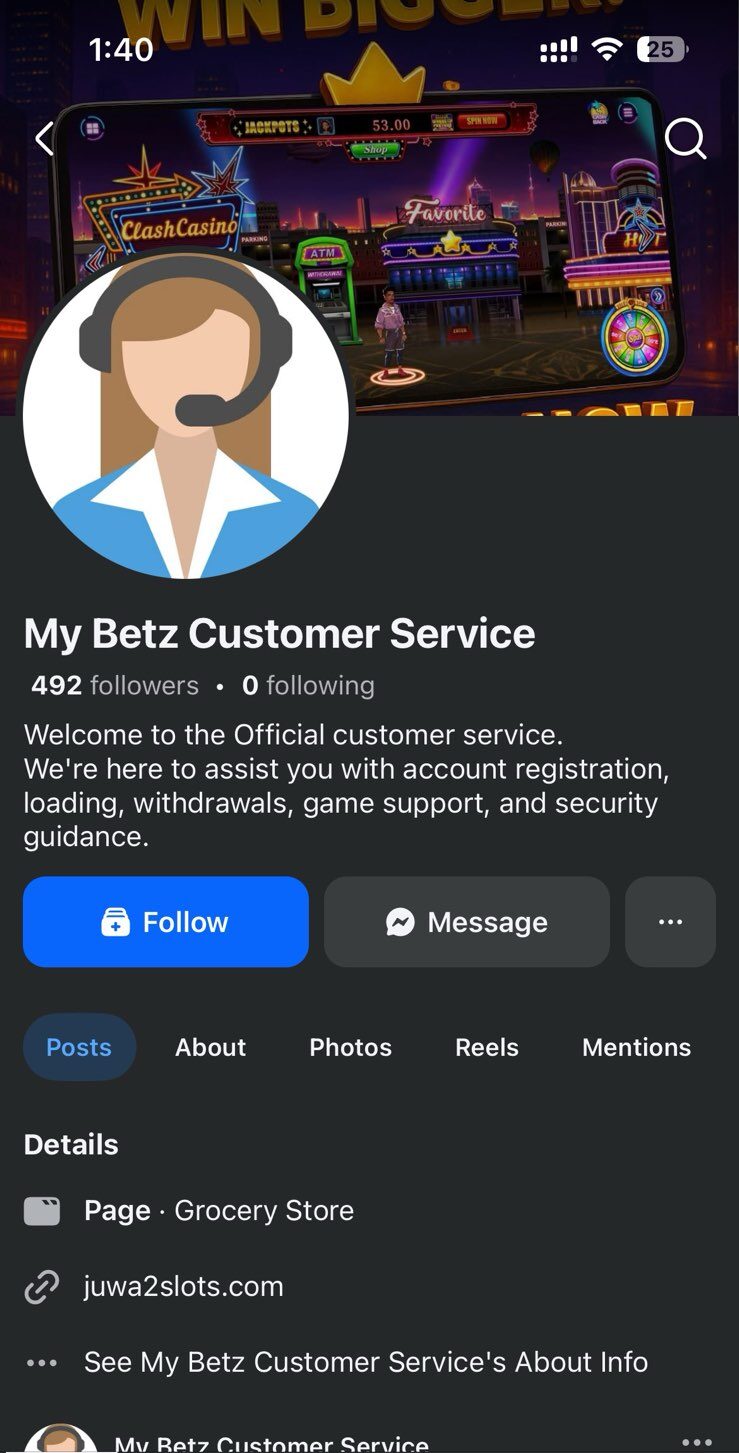
Once you are ready, send one clean message with all proof attached.
Copy/paste support message template
Hello, I made a deposit of [amount] on [date] at [time], but the credits did not appear in my account. My username is [username], email is [email], and the order number is [order number]. The transaction ID is [transaction ID]. I’ve attached a screenshot of the deduction. Please credit my account. Thank you.
After you send the message, attach your screenshot and any receipt pages. Typically, support replies within a few hours. However, during peak times it may take up to 24 hours.
Prevention tips for deposit and cashout issues
Reduce deposit failures
Prevention helps, especially if you deposit often. Therefore, use these habits to lower the chance of missing credits.
- Check your connection: A weak signal can interrupt payment confirmation.
- Don’t close the app mid-transaction: Instead, wait until the process completes.
- Screenshot key screens: For example, capture your balance, deposit amount, and confirmation screen.
- Use a consistent payment method: This can reduce verification friction.
- Avoid peak traffic when possible: Late evenings and weekends may be slower.
If nothing resolves it quickly
Document everything and follow up clearly
In rare cases, the issue can take longer. If that happens, document everything carefully and keep all proof in one folder. Meanwhile, save screenshots of transaction IDs, order numbers, and exact timestamps.
If the problem continues beyond 48 hours, follow up through the official channels shown in the app. On the other hand, avoid relying on random contact details from pages or groups, since they may not be official. Instead, stick to in-app support or the official support profile the app routes you to.
Remember, legitimate transactions leave a digital trail. Therefore, your bank statement, payment confirmation, and Juwa 2.0 order history all work as proof. Stay calm, be consistent, and keep your details accurate.
Why a Juwa 2.0 cashout can get blocked
Account review flags can delay withdrawals
Sometimes the deposit is fine, but a cashout stalls. In that case, a system review may place your withdrawal on hold. This does not always mean you did something wrong. Instead, it often means the platform is verifying activity.
Common reasons for a cashout hold
- Unusual play patterns: For example, repeated outcomes in a short time may trigger an automatic review.
- Technical anomalies: Frequent disconnects, crashes at the same point, or sudden jumps can look suspicious to automated checks.
- Payment-related holds: If a chargeback or dispute was filed, a payment audit may pause cashouts until it clears.
How to handle a cashout hold effectively
Use one clear message, not repeated tickets
If your cashout is stuck, avoid sending many messages like “Why?” back-to-back. Instead, send one professional note with proof and a direct request for the next step. As a result, support can process your case without sorting through duplicates.
What to include in your cashout hold message
- Screenshots of your balance and the pending cashout
- Relevant deposit confirmations and transaction IDs
- Your exact username (copy it from the app if possible)
- A simple question: “My cashout is on hold. What documentation or steps do you need from me?”
In short, clear documentation and calm communication work best. Once support requests a specific item and you provide it, the hold often gets resolved.
Bottom line
Juwa 2.0 deposit not showing is frustrating, but it is usually fixable. First, try ATM > Buy > History and submit a Supplement request with accurate details. If that fails, contact in-app support with your screenshots, transaction ID, and timestamps.
Finally, keep records of everything you submit. With the right proof and a steady follow-up, your credits or cashout review typically gets resolved.
How do I add money
you can check out this video to see the steps: https://youtu.be/VqwfPvXFEgs?si=Q_pudvYXv72NAueN